8/29/2026 | 3 min read
Shopify B2B Wholesale Ordering: How to Manage Purchase Orders at Scale
Learn how Shopify B2B merchants manage wholesale purchase orders, supplier directories, reorder planning, and multi-supplier SKU mapping without losing control of inventory costs.
The Challenge of Wholesale Ordering on Shopify
Shopify is excellent for direct-to-consumer sales, but wholesale purchasing works differently. B2B merchants need to manage supplier relationships, negotiate pricing tiers, place purchase orders, track partial shipments, and plan reorders based on sales velocity. Shopify does not handle any of this natively.
Most B2B merchants end up juggling spreadsheets, email threads, and manual calculations to keep their purchasing organized. This works when you have 10 SKUs and one supplier. It breaks down fast when you are managing 200 products across five vendors with different lead times and payment terms.
What B2B Wholesale Ordering Actually Requires
Running a wholesale purchasing operation on Shopify means handling several connected workflows:
Supplier Directory Management
You need a centralized place to store vendor contacts, payment terms, average lead times, minimum order quantities (MOQs), and performance history. This information should be attached to the products each supplier provides, not scattered across separate documents.
SKU-to-Vendor Mapping
Many Shopify merchants source the same product from multiple suppliers at different price points. You need to track primary and secondary vendors for each SKU, along with wholesale unit costs, lead times, and MOQs per supplier.
Reorder Planning
Knowing when to reorder requires understanding your sales velocity, supplier lead times, and safety stock levels. Without this calculation, you either overstock and tie up cash, or understock and lose sales.
Purchase Order Creation
Once you know what to reorder, you need to generate a professional purchase order for each supplier. This includes line items, quantities, unit costs, payment terms, and delivery expectations.
Receiving and Reconciliation
When shipments arrive, you need to record what was received, compare it against the PO, and flag discrepancies. Partial shipments are common in wholesale, so tracking line-by-line receiving matters.
A Practical B2B Purchasing Workflow
Here is the workflow that works for most Shopify B2B merchants managing 50 to 500+ SKUs:
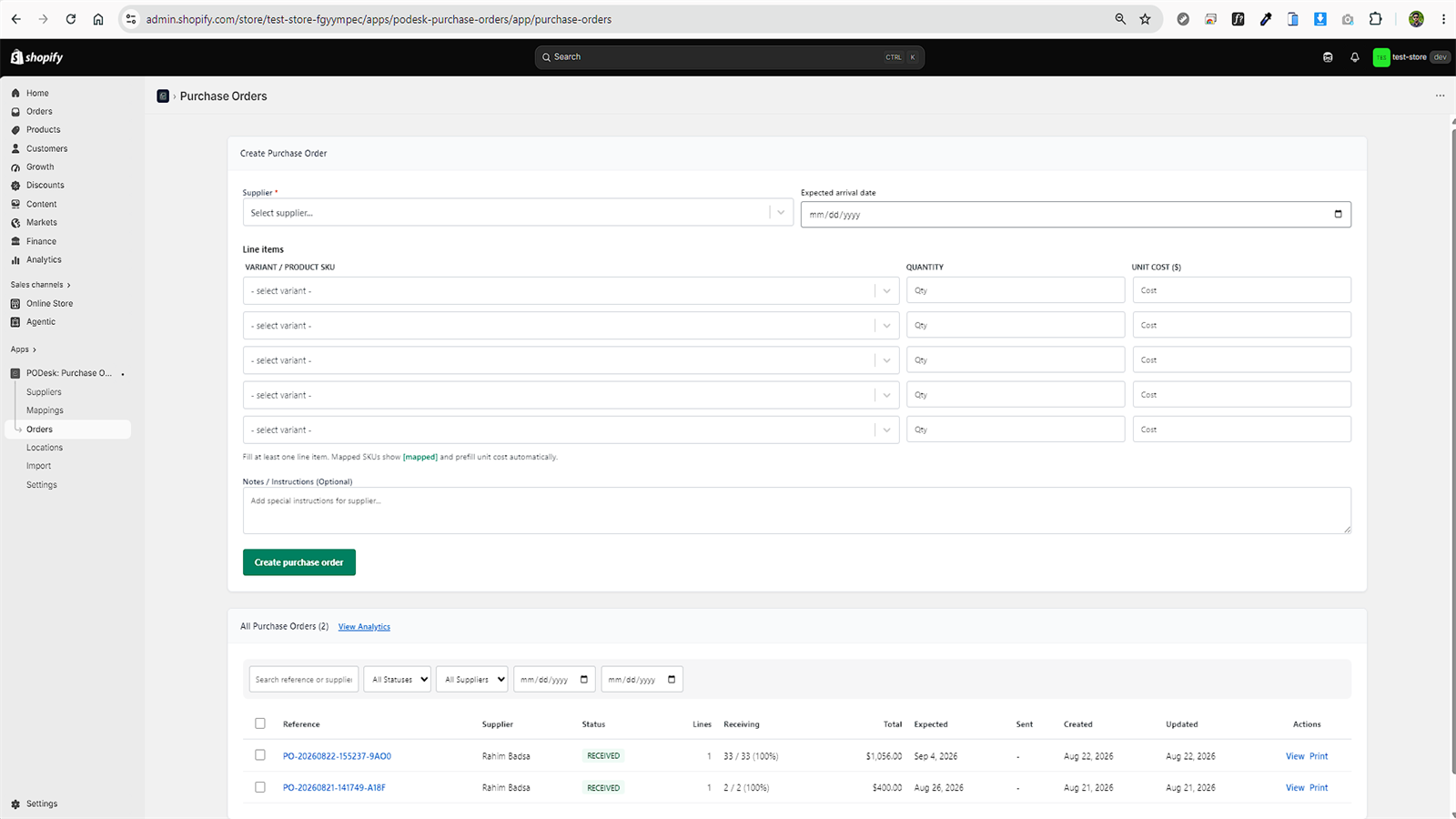
Step 1: Build Your Supplier Directory
Start by listing every supplier you work with. For each one, record primary contact name and email, payment terms (Net 30, Net 60, COD, Prepaid), average lead time in days, minimum order quantities, and shipping instructions.
Step 2: Map SKUs to Suppliers
For every product in your Shopify catalog, assign at least one supplier with a wholesale unit cost. If you source from multiple vendors, mark primary and secondary suppliers so you know which one to order from first.
Step 3: Calculate Reorder Points
Use the reorder point formula to determine when each SKU needs replenishment:
Reorder Point = (Daily Sales Velocity x Lead Time Days) + Safety Stock
For example, if you sell 5 units per day of a product with a 14-day lead time and you want 20 units of safety stock, your reorder point is 90 units. When inventory drops to 90, it is time to place a new order.
Step 4: Generate Purchase Orders
Group items by supplier and generate one PO per vendor. Include SKU, product name, quantity, unit cost, and total for each line item. Add payment terms, expected delivery date, and any special instructions.
Step 5: Track Receiving
When a shipment arrives, open the corresponding PO and record what was received for each line item. If the supplier delivered 80 out of 100 units, mark 20 as pending. This prevents overpayment and keeps your inventory accurate.
Scaling with PODesk on Shopify App Store
A focused tool like PODesk automates the connected parts: supplier directory, SKU mapping, reorder calculations from real Shopify sales data, one-click PO generation, and line-by-line receiving tracking. It reads your Shopify product and inventory data in read-only mode, so there is zero risk to your live store.
Related Resources
Comments
0 replies- No comments yet. Be the first to share your thoughts.